Blog

  • Excel function to list files in a folder without VBA

    Listing the files in a folder is one of the activities which cannot be achieved using normal Excel formulas. I could tell you to turn to VBA macros or PowerQuery, but then any non-VBA and non-PowerQuery users would close this post instantly. But wait! Back away from the close button, there is another option.

    For listing files in a folder we can also use a little-known feature from Excel version 4, which still works today, the FILES function.

    The FILES function

    If you search through the list of Excel functions, FILES is not listed. The FILES function is based on an old Excel feature, which has to be applied in a special way. The instructions below will show you step-by-step how to use it.

    Create a named range for the FILES function

    The first step is to create a named range, which contains the FILES function. Within the Excel Ribbon click Formulas -> Define Name

    Within the New Name window set the following criteria:

    • Name: listFiles
      Can be any name you wish, but for our example we will be using listFiles.
    • Refers to: =FILES(Sheet1!$A$1)
      Sheet1!$A$1 is the sheet and cell reference containing the name of the folder from which the files are to be listed.
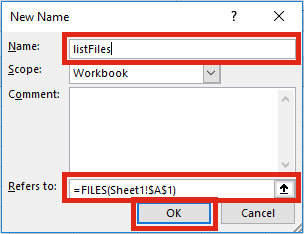
    Click OK to close the New Name window.

    Apply the function to list files

    The second step is to set-up the worksheet to use the named range.

    In Cell A1 (or whichever cell reference used in the Refers to box) enter the folder path from which to list the files, followed by an Asterisk ( * ). The Asterisk is the wildcard character to find any text, so it will list all the files in the folder.

    Select the cell in which to start the list of files (Cell A3 in the screenshot below), enter the following formula.

    =INDEX(listFiles,1)
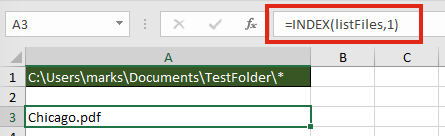
    The result of the function will be the name of the first file in the folder.

    To retrieve the second file from the folder enter the following formula

    =INDEX(listFiles,2)

    It would be painful to change the file reference number within each formula individually, especially if there are hundreds of files. The good news is, we can use another formula to calculate the reference number automatically.

    =INDEX(listFiles,ROW()-ROW(A$2))

    The ROW() function is used to retrieve the row number of a cell reference. When used without a cell reference, it returns the row number of the cell in which the function is used. When used with a cell reference it returns the row number of that cell. Using the ROWS function, it is possible to create a sequential list of numbers starting at 1, and increasing by 1 for each cell the formula is copied into.

    If the formula is copied down further than the number of files in the folder, it will return a #REF! error.
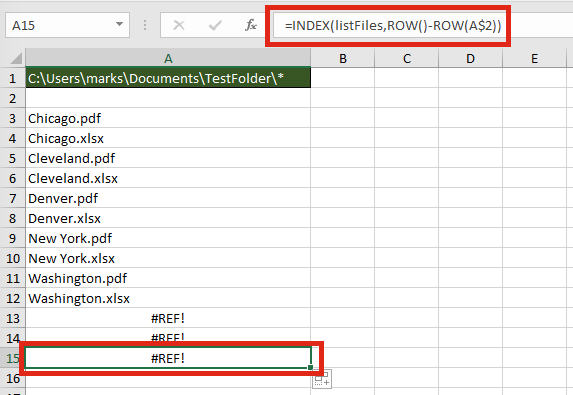
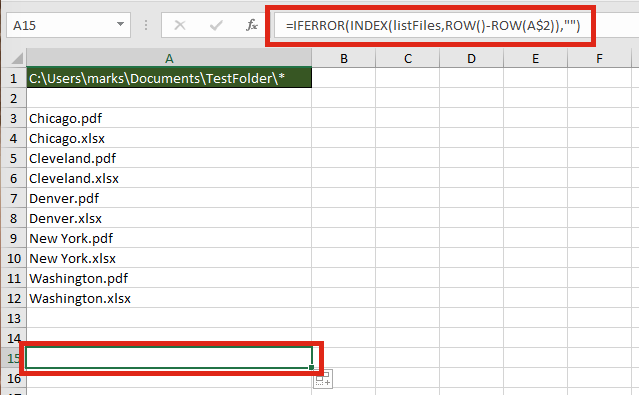
    Finally, wrap the formula within an IFERROR function to return a blank cell, rather than an error.

    =IFERROR(INDEX(listFiles,ROW()-ROW(A$2)),"")
    Listing specific types of files

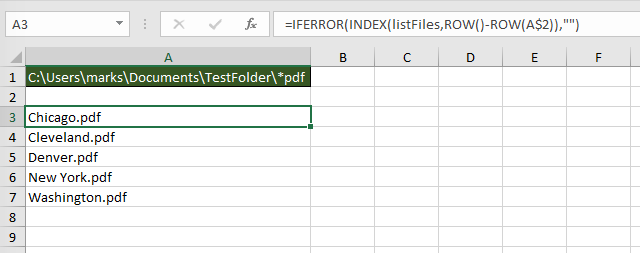
    The FILES function does not just list Excel files; it lists all file types; pdf, csv, mp3, zip, any file type you can think of. By extending the use of wildcards within the file path it is possible to restrict the list to specific file types, or to specific file names.

    The screenshot below shows how to return only files with “pdf” as the last three characters of the file name.
    The wildcards which can be applied are:

    • Question mark ( ? ) – Can take the place of any single character.
    • Asterisk ( * ) – Represents any number of characters
    • Tilde ( ~ ) – Used as an escape character to search for an asterisk or question mark within the file name, rather than as a wildcard.

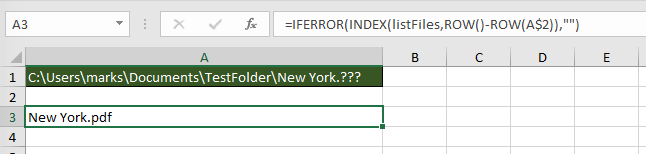
    The screenshot below shows how to return only files with the name of “New York.“, followed by exactly three characters.
    Advanced uses for the FILES named range

    Below are some ideas of how else you could use the FILES function.

    Count the number of files

    The named range created works like any other named range. However, rather than containing cells, it contains values. Therefore, if you want to calculate the number of files within the folder, or which meet the wildcard pattern use the following formula:

    =COUNTA(listFiles)

    Create hyperlinks to the files

    Wouldn’t it be great to click on the file name to open it automatically? Well . . . just add in the HYPERLINK function and you can.
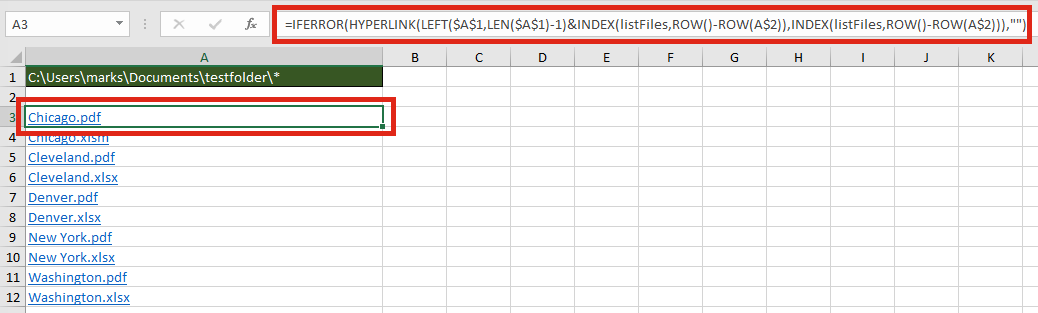
    The formula in Cell A3 is:

    =IFERROR(HYPERLINK(LEFT($A$1,LEN($A$1)-1)&INDEX(listFiles,ROW()-ROW(A$2)),INDEX(listFiles,ROW()-ROW(A$2))),"")

    Check if a specific file exists within a folder

    It isn’t necessary to list all the files to find out if a file exists within the folder. The MATCH function will return the position of the file within the folder.
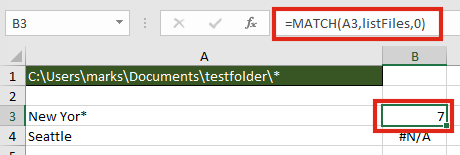
    The formula in cell B3 is:

    =MATCH(A3,listFiles,0)

    In our example, a file which contains the text “New Yor*” exists, as the 7th file, therefore a 7 is returned. Cell B4 displays the #N/A error because “Seattle” does not exist in the folder.

    Find the name of the next or previous file

    The files returned are in alphabetical order, therefore it is possible to find the next or previous file using the INDEX / MATCH combination.
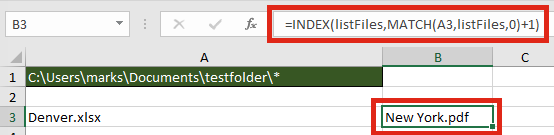
    The next file after “Denver.xlsx” is “New York.pdf“. The formula in Cell B3 is:

    =INDEX(listFiles,MATCH(A3,listFiles,0)+1)

    Retrieve values from each file with INDIRECT

    The INDIRECT function can construct a cell reference using text strings. Having retrieved the list of files in a folder, it would be possible to obtain values from those files.

    The formula in Cell B3 is:

    =INDIRECT("'"&LEFT($A$1,LEN($A$1)-1)&"["&A3&"]Sheet1'!$A$1")

    For INDIRECT to calculate correctly the file does need to be open, so this may be a significant flaw in this option.

    Usage notes

    When working with the FILES function there are a few things to be aware of:

    • The file path and file name is not case sensitive
    • Files are returned in alphabetical order
    • Folders and hidden files are not returned by the function
    • The workbook must be saved as a “.xlsm” file format
  • Tealium Migration

    As part of our plan to continue to drive value from our data we’re undertaking a project to migrate from our existing tag management solution “Adobe DTM” to a new solution called Tealium. There are some immediate operational benefits to doing this such as:

    • Increase site performance and speed through better code management (primary benefit).
    • Opportunity to ensure the data we collect is aligned with our flywheel strategy.
    • Generate value-add insight to help the business with critical commercial and customer related decisions.
    • Improve our reporting capability and help the Dynamic Trading Cells with their analysis.
    • Provide a robust governance structure around code changes and developments on the website.
    • Improve the way data is collected and moves between a website or mobile app session and vendors.

    The official due date is the 1st April 2018 and at a top level there are 4 phases:

    1. Requirements gathering – to ensure the solution delivered meets the needs of the business.
    2. Solution design – translating the business requirements in to technical documentation.
    3. Implementation – the longest part, working along side the product development teams and our development agency DMPG.
    4. Business readiness – testing to make sure what we’ve developed both matches our documentation and can answer as many of the business requirements as possible.

    The migration is going to result in a number of functional changes to the way we structure and collect data including moving to a “web” report suite rather than how we currently have a “desktop website” and “mobile website” report suite, apps are currently out of scope for this project.

  • A Little Charisma Goes a Long Way

    I recently read this article from the Harvard Business Review (shared with me by Miles) and thought it made an interesting point.

    Charismatic leaders can inspire others to perform better, and it would seem to follow that the more charisma a leader has, the more effective he or she will be. But new research reveals limits to the more-is-better theory. Researchers asked 306 leaders to rank themselves on charisma, using a common personality test, and to rate their effectiveness as leaders on a 10-point scale; they also asked coworkers to rate the leaders’ effectiveness (on average, 14 people assessed each leader).

    The more charismatic the leader, the higher the self-reported effectiveness—but when charisma reached the 60th percentile (slightly more than average), coworkers’ ratings of effectiveness began to decline. Although it’s hard to define “too much” charisma, several traits may be red flags, including overconfidence, narcissism, and manipulative behaviour. The findings suggest that leaders should be aware that being highly charismatic may have drawbacks and should consider things such as 360-degree evaluations, coaching, and development programs to enhance self-awareness and self-regulation.

  • Organisation Using Trello

    I thought I’d write an article about this as I’ve had a few people asking questions, hopefully some of you have heard of Trello but if now it’s literally a tool to help you organise and work collaboratively. The free version includes nearly everything, the paid part only adds on a few features that aren’t that valuable. You can get started / sign up here.

    It’s worth bearing in mind this doesn’t work for everyone, some people are naturally organised, some people genuinely work better in chaos but for those of you in-between who could do with a helping hand this might be for you.

    They have a help page that can take you through some of the basics like basics, creating a board and features you can take a look at here, they even have videos if you’re not sure. What I did want to talk about however is how YOU might find it useful, how to setup a personal board to manage your work and some of the features that can help with stuff coming in.

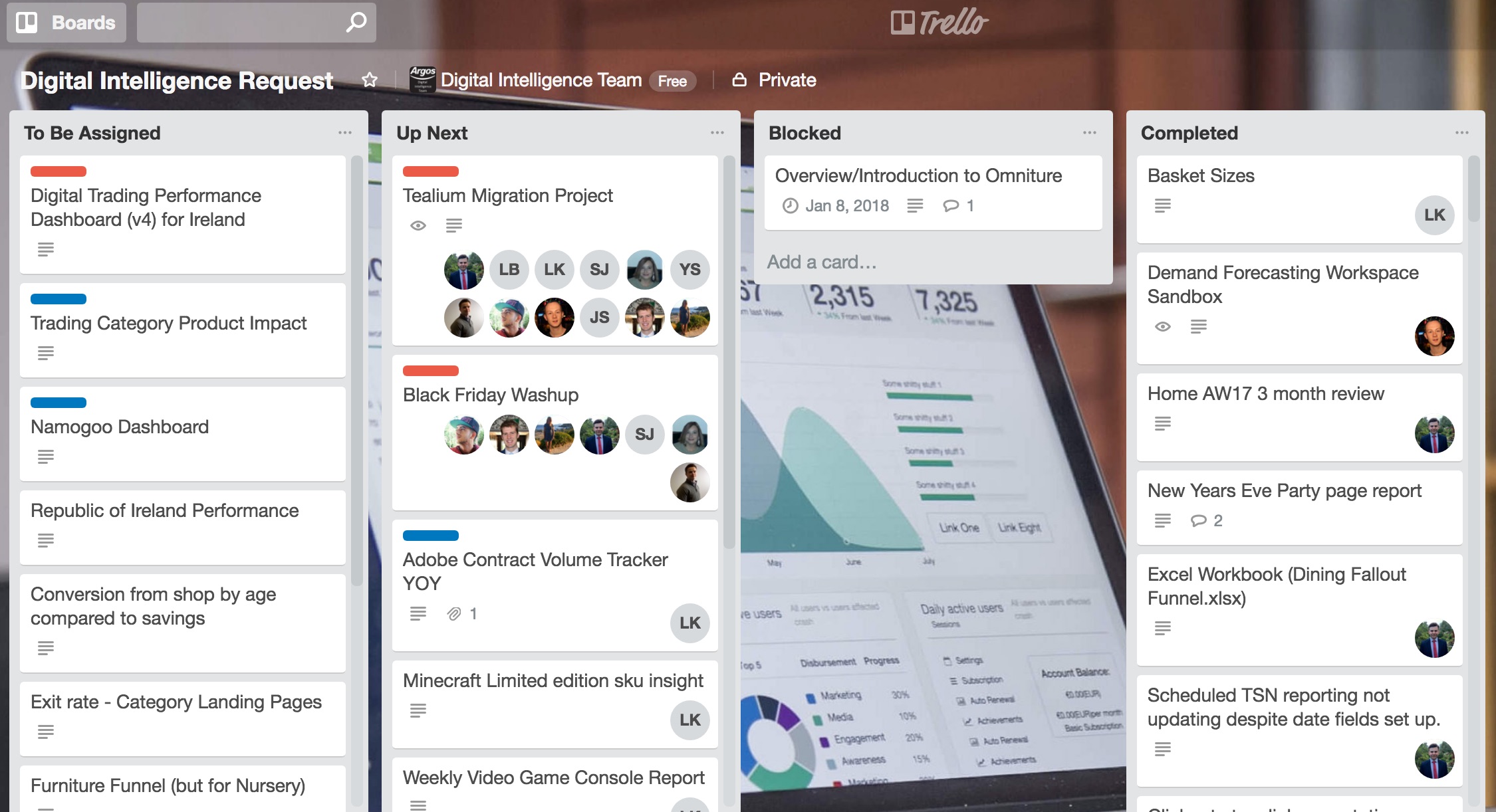
    Typically I’d setup a board like below and how our team works together on requests:

    • TBA (To Be Actioned) – Now the idea is all of the requests you get via email, Skype, text, WhatsApp, Slack, phone, carrier pigeon you dump straight in “TBA”. That’s where your ‘backlog’ is. This is a similar approach to how product development or agile works. I’ll show you another trick with this a bit further down.
    • Up Next / In Progress – Next you have your “Up Next / In Progress”, if you’ve got a lot of stuff you might want to split this out so you know what you’ve decided you’re going to work on next and what you’re currently working on. That being said I typically find it’s not necessary and I can keep the things I’m currently working on or just about to start in this list.
    • Blocked – now this is an important one, if you’re waiting for a response, can’t do something because it’s not possible at the moment, etc, put it in here. This lets you know how many items you’re working on or want to work on but can’t due to external factors. This keeps your “Up Next / In Progress” list clear of junk that you can’t do anything about. You’d typically check this on a regular basis to make sure there’s nothing that’s changed.
    • Completed – hopefully doesn’t require much in the way of explanation but this is where you’ve put stuff once it’s done. I’d try not to archive or delete stuff from here as it’s useful as a log that you can go back to.

    Typically this is how our team operate and you can see what it looks like for us below but this can be done for a team or for an individual depending on how you work best.

    Card Setup

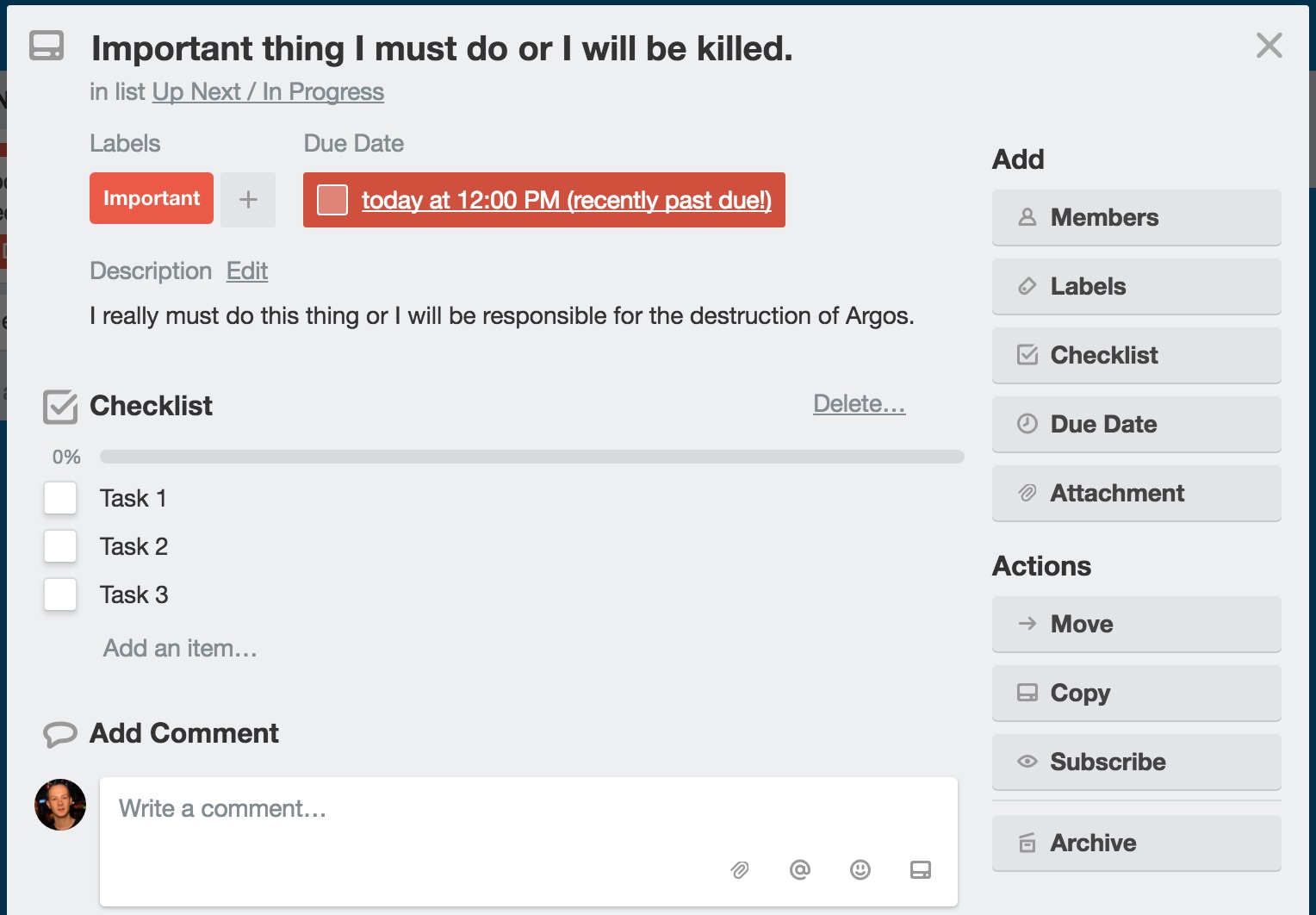
    There is a whole host of options within the cards themselves, you can:

    • set your labels (which you can also do from the board).
    • add a due date which will highlight if your over due.
    • if you’ve got others in the team signed up you can add them to the card if they’re involved.
    • create a checklist or multiple checklists of individual tasks.
    • attach files from multiple places including One Drive so if you work from One Drive your file will always be up to date.
    • write a description including bullets, numbered lists, links, headings, etc (click to start writing and press the formatting button if you’re not sure).
    • add comments either for your own information or get other people to comment!
    • you can also move or copy to other boards, or archive (doesn’t delete just hides the card).
    • subscribe, if it’s somebody else’s board you can subscribe to get notified of any updates.
    • you can also see the history of the card, any changes, updates, comments.

    Labels

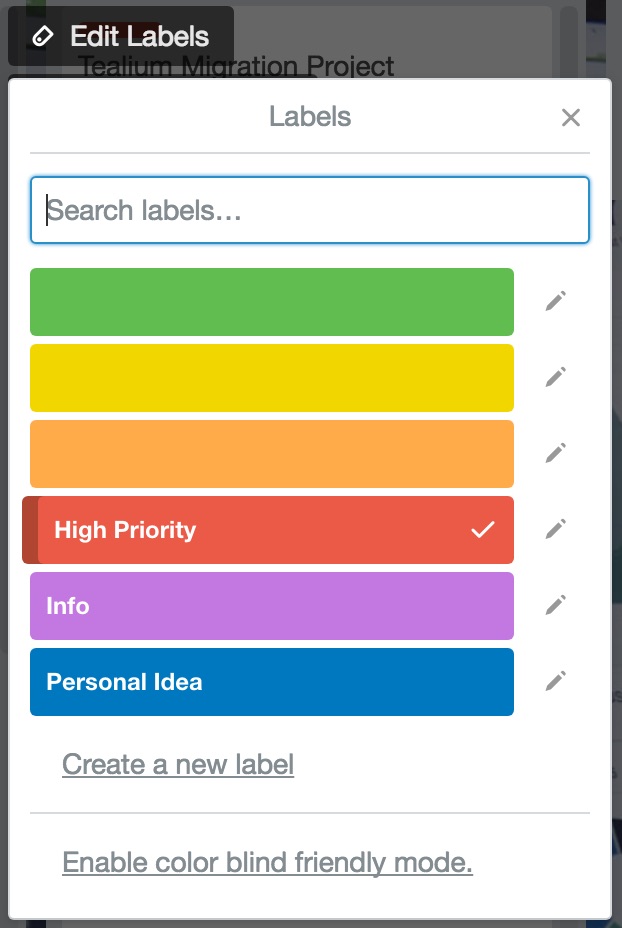
    You can use labels to help colour code things and you can also name those labels and create new ones, you might for example want “High Priority” because lets face it even at the top of the list you sometimes need that extra RED to stand out. You might want a colour for your own ideas of things that you want to do or ones that are just for information but you want to have in Trello so they’re easy to find.

    Main Menu

    There are a few options of note in here, if you hit the “Show Menu” icon on the top right you’ll see these:

    • Change Background – okay maybe not that important but if you hit “Change Background” you can select from a ton of photos to make your board a little bit more personalised.
    • Filter Cards – if you’re working with other people on a board or have a lot on there you might find it a bit overwhelming with all the cards, if you hit “Show Menu” and what’s even better is you can bookmark these if you want to have a team board but filtered to “me only”.
    • Email-to-board – this is a really useful option, if you don’t want to have to manually copy and paste requests or write them up you can just email them directly to the board! You’ll find this option under “More” but it will give you a funky email address you can send stuff too, save this in your contacts as something easy to remember and whenever you want to add an item just forward it on.
    • Activity – here’s where you can see overall activity for the board if you’re wanting to see what’s changed recently and don’t want to go in to each card.

    Tips and Tricks

    • If you want to make it possible for people to fill in a form to request some work you can either use something like TypeForm or Survey Monkey to create a form / survey and direct the responses to the Trello “Email-to-board” email address. That way you can get people to push stuff directly to your board without having to do anything!
    • Make sure you save your work to One Drive rather than your local computer, aside from the fact it means you can access it from home and share it, you can also link it to a card and the file the card refers too will always be up to date, no more uploading version 1.1, 1.1.1, 1.1.1.1, you get the idea…
  • The Worst Office Jargon

    Going forward

    It means in the future and is probably the most overused piece of office jargon. The phrase was most probably coined to encourage office staff to stay optimistic, rather than dwelling on what (usually negative) development is happening in the here and now. Last year Conservative minister Alan Duncan took a stand for common sense when he banned his staff from using the term, calling it “loose and meaningless”.

    To ‘Action’ something

    In an office environment you may often be asked to ‘action’ something rather than simply ‘do’ it. Verging, the creation of a verb from a noun or adjective, has become gradually more common. In this case action can almost always be replaced with a proper, more specific verb.

    Touch base

    An Americanism, the term ‘touch base’ comes from baseball where runners need to touch the base for a run to be legal. In the boardroom, however, it means to make or renew contact with someone. This contact can be in the form of a call, email or face-to face meeting. Often used as a request; “let’s touch base” is about as meaningful as “let’s do lunch”. Office workers may also be asked to ‘reach out’, which means the same thing.

    Circle back

    Circle back is another piece of office jargon which makes absolutely no sense. It really means to catch up later; a more grandiose version of ‘follow up’ or ‘check back’. An example of its use would be “I’m just heading to a very important meeting but we will circle-back later.”

    Blue–sky thinking

    Equally meaningless are the phrases ‘blue sky thinking’ and ‘thinking outside the box’. Both mean the idea of thinking creatively and coming up with original ideas. Put into ordinary language they translate to ‘doing your job’.

    Brainstorm

    Slightly more specific than blue sky thinking, brainstorming is a technique by which a group discussion is held to produce ideas. The brainstorming movement was nearly thwarted several years ago when a council banned the term, fearing it might offend mentally ill people and those with epilepsy. An alternative phrase, ‘thought showers’, was encouraged.

    To take something offline

    This term is particularly maddening because it has nothing to do with the internet. It is actually a convoluted way of putting off addressing something. For example if an office worker says about a certain topic, “let’s take this offline”, he or she is really saying let’s talk about this later or more probably never again.

    Low hanging fruit

    This non specific phrase refers to an easily achievable goal or target. It comes, quite logically, from the idea that you wouldn’t need to scale a tree to pick an apple when there is one hanging close to the ground. The problem is that it means nothing as no one knows what tasks are actually being referred to. It is also misleading; taking the easiest option is not always the best solution.

    Get the ball rolling

    This sporting idiom originated from games which began when a ball started to roll. Somehow the term has crept into boardrooms and office blocks and simply means ‘begin’.

    Drill down

    Not, as one might think, anything to do with heavy machinery. It means to look at something in detail. It can be used either as a noun or as a verb, for example “he found the required information through a drill-down”.

  • Simon Sinek on Millennials in the Workplace

    Interesting talk from Simon Sinek highlighting why it can be challenging to manage millennials (this includes me) in the workplace. He talks about a number of socio-economic factors that have led to a very different culture from that which has come previously. It’s great if you manage a millennial but I also found it really insightful being a millennial it highlighted certain behaviours I have that I hadn’t considered before and made me want to try a few things like not sleeping with my phone next to me!

  • If music gives you goosebumps, your brain might be special

    Do you ever get that feeling when listening to a great song that makes all the hairs on your arm stand on end?

    Experiencing sensations like goose bumps or a lump in the throat when listening to music is quite rare and unique. Matthew Sachs a former undergraduate at Harvard, last year studied individuals who get chills from music to see how this feeling was triggered.

    The research examined 20 students, 10 of which admitted to experiencing the aforementioned feelings in relation to music and 10 that didn’t and took brain scans of all of them all. He discovered that those that had managed to make the emotional and physical attachment to music actually have different brain structures than those that don’t. The research showed that they tended to have a denser volume of fibres that connect their auditory cortex and areas that process emotions, meaning the two can communicate better.

    Sachs’s findings have been published on Oxford Academic but he is quoted by Neuroscience as saying:

    “The idea being that more fibers and increased efficiency between two regions means that you have more efficient processing between them.”

    This means if you do get chills from music you are more likely to have stronger and more intense emotions. Plus these sensations can also be associated with memories linked to a certain song, which cannot be controlled in a laboratory setting.

    Although the study was only small in size Sachs is currently conducting further research which will look at the brains activity when listening to songs that register certain reactions. By doing so he hopes to learn what neurologically causes these reactions and could actually tap into treatment for psychological disorders.

    “Depression causes an inability to experience pleasure of everyday things. You could use music with a therapist to explore feelings.”

    You can read the original article here.

  • Introverts vs Extroverts

    Ever wondered what the real differences are between introverts and extroverts are? This video does a great job of explaining it with a little bit of background to the science behind it.