A really great TED talk from Ray Dalio a hedge fun investor (not as boring as you might think) about how his business has delivered success by giving everyone and equal voice and enforcing ruthless transparency to drive thinking and development.
Blog
-
SQL Joins
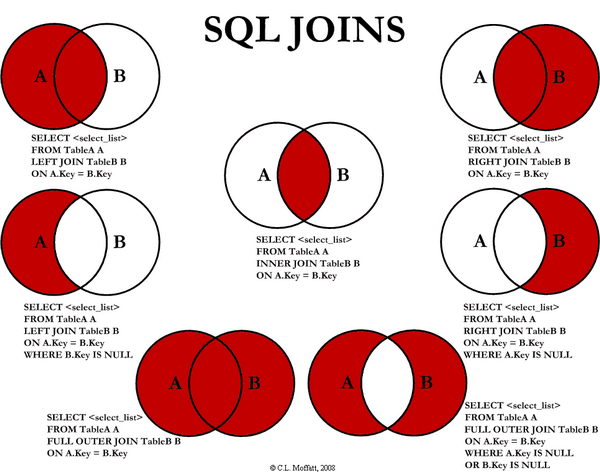
For those of you that use or want to learn to use SQL but struggle with “joins” I found this diagram really helpful.
-
50 Essential Management Tips
For those of you that prefer a digital version of the booklet from The Academy around the top 50 tips for line managers you can download or read a copy below.
-
10 More Tricks to Appear Smart in Meetings
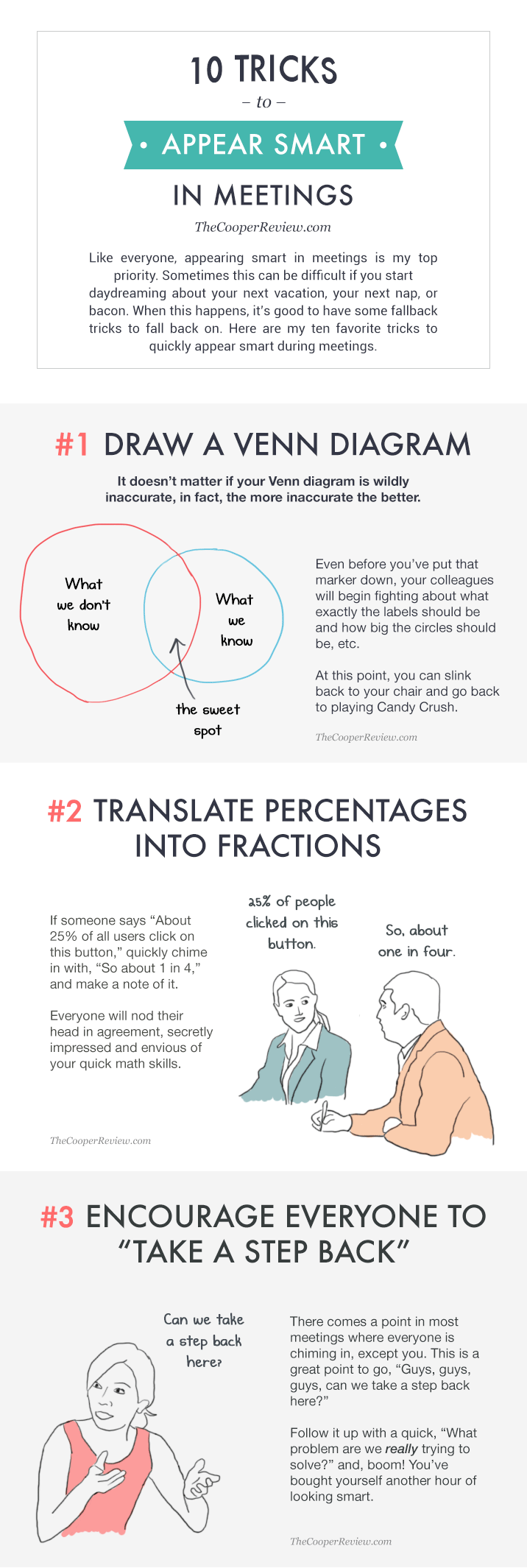
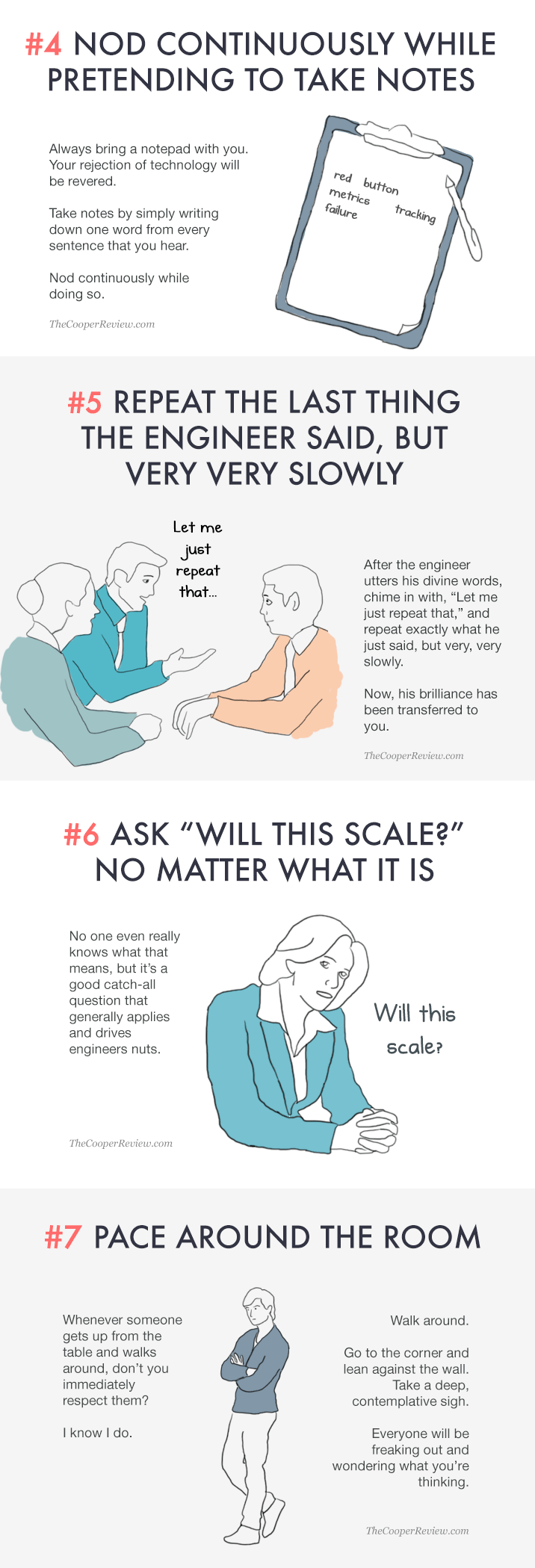
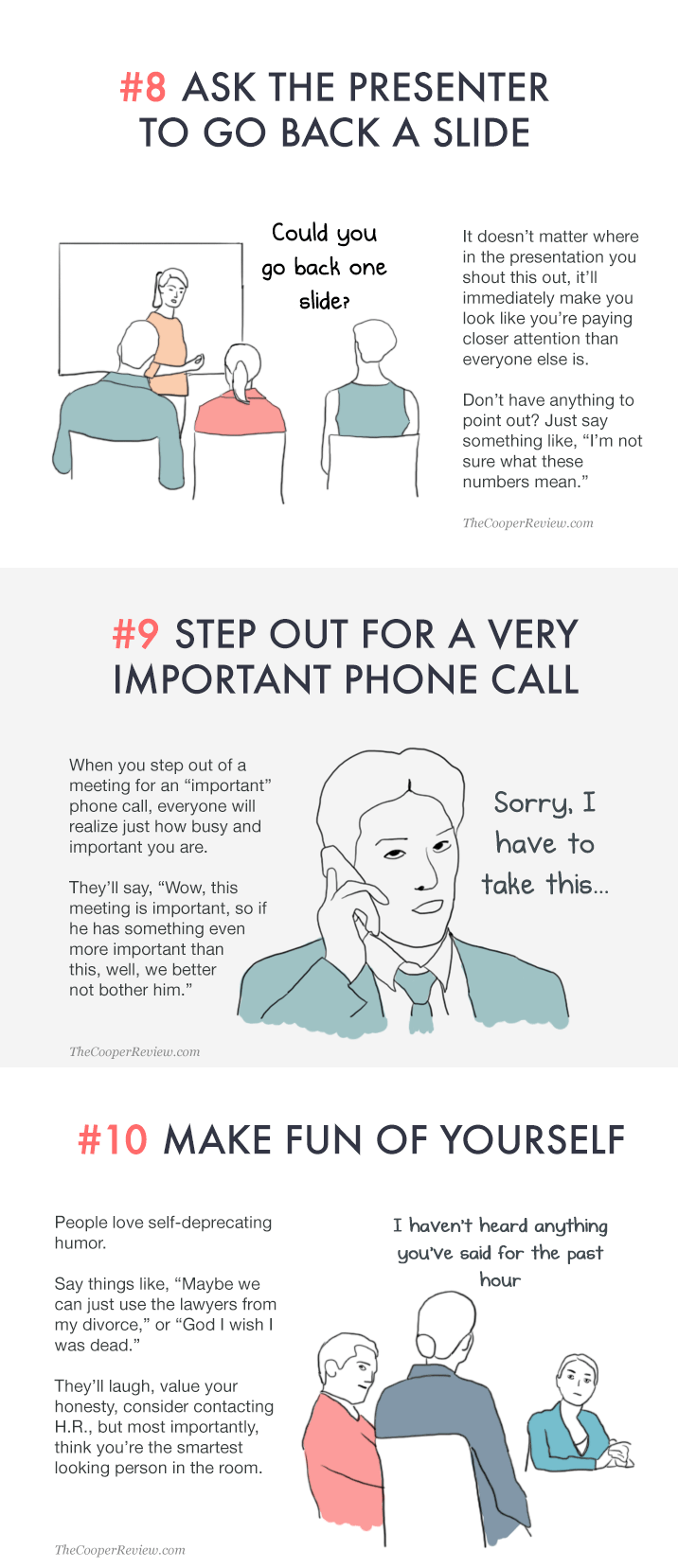
If you’re trying to get ahead in the corporate world, appearing smart in meetings should be your top priority. This can be hard if you find yourself daydreaming about Mexico, margaritas or queso cheese dip. The good kind.
If this happens, keep one of these tricks in your back pocket so you always look like you know what everyone’s talking about even though you definitely do not.
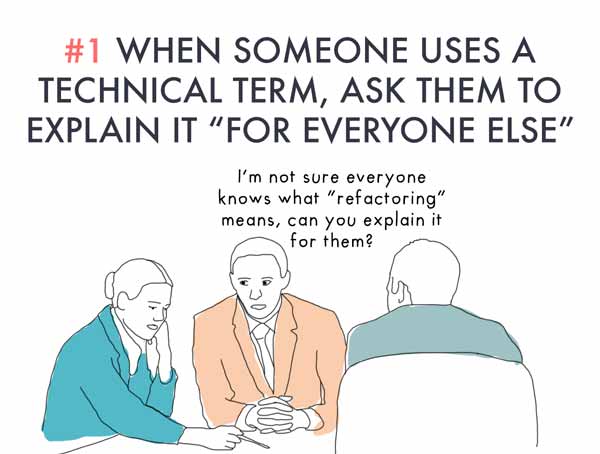
If a technical term is used, stop the person and say, “I think some folks here might not know what that is, could you explain it for them?” or “I think we might have different interpretations of that word, can you describe how you’re using it?” This way you look like you’re trying to get everyone up to speed, and you can finally figure out what that technical term means.
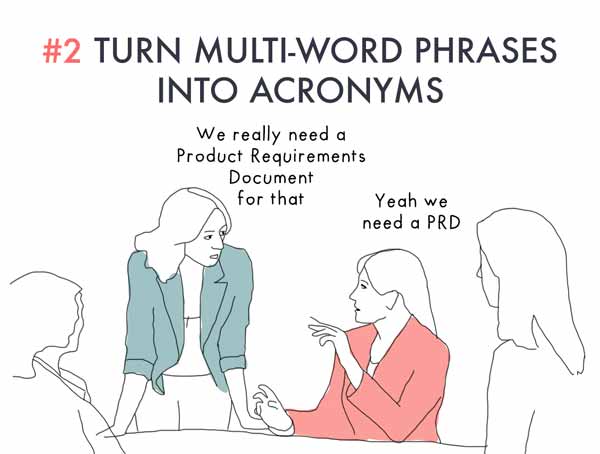
Anytime you hear a multi-word phrase, turn that phrase into an acronym on the fly (OTF) and repeat it back to them. This works best with three-word phrases such as “point of contact” (POC), “public relations nightmare” (PRN), or “product management system” (PMS).
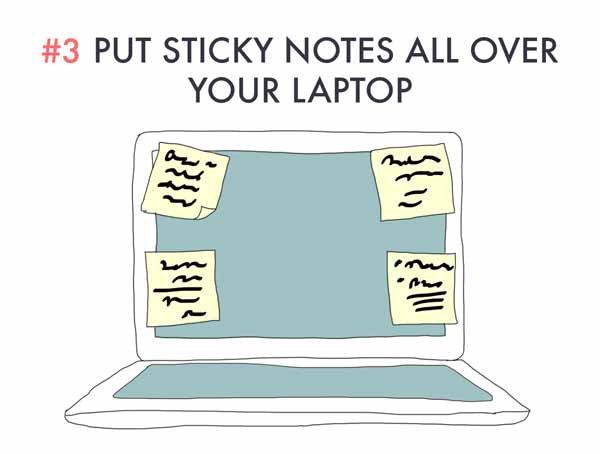
No one looks like they have more on their plate than someone with sticky notes all over their laptop, am I right? What do those sticky notes say? What do those bullet points and double underlines mean? It means you’re important.
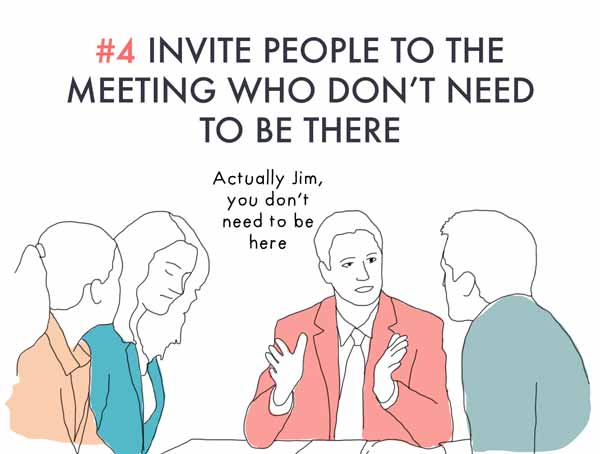
Have you ever been in a meeting where someone was told they weren’t needed? It’s the most embarrassing thing ever. It’s also a great thing to do to someone you don’t particularly like. After they arrive, wait until just after the meeting starts and point to that person. Let them know they can leave because they really aren’t needed. This power play will get you through the rest of the meeting looking like a real VP.
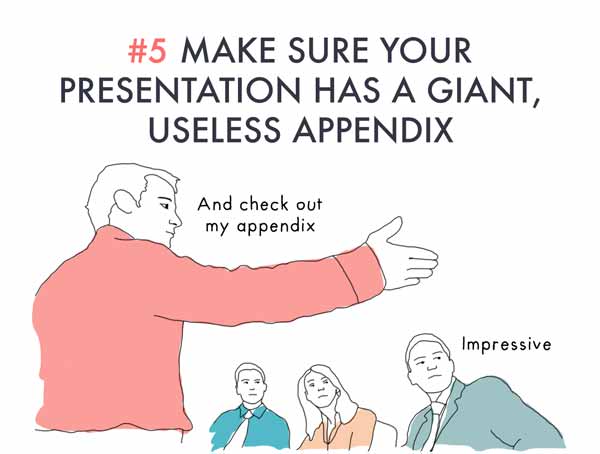
Slide decks are only as great as their giant, useless appendixes, so make sure yours has a ton of useless, not even remotely relevant slides in it. You’ll look like you really did your research.
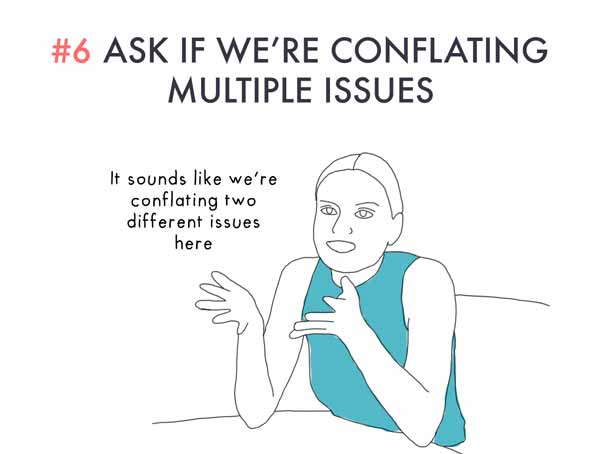
When someone says we’re conflating two issues, don’t you immediately think they’re smarter than you? I know I do. I don’t even know what conflating means but I know once I say it, it’ll be impressive, and definitely accurate.
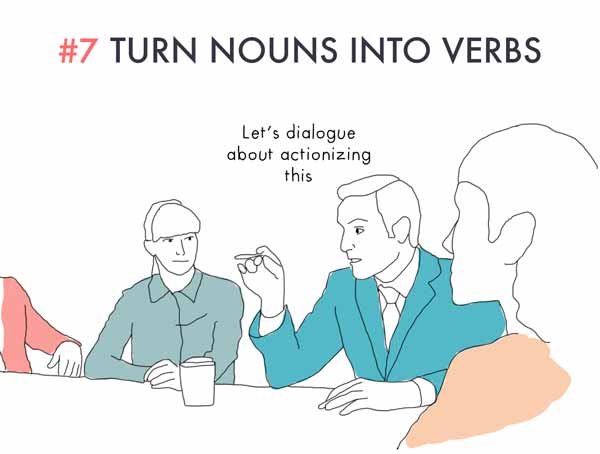
If you’re ever struggling for something to say, just take a noun and verbalize it. Using simple words in new and interesting ways will creativize your presence.
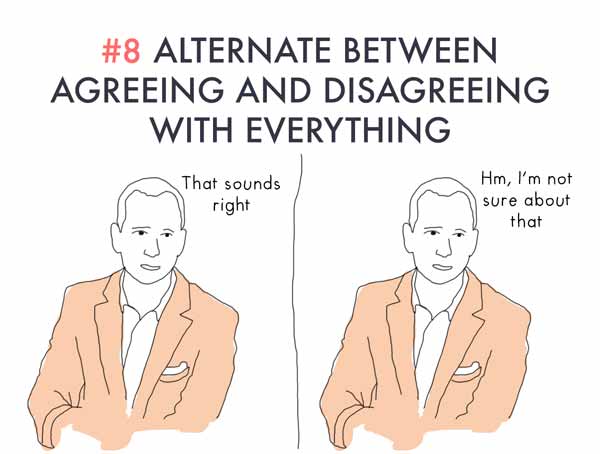
No one should ever be able to predict if you’re going to like or approve of anything. You know, like how it is with CEOs. The best way to fake this is to randomly alternate between agreeing and disagreeing. You’ll be perceived as a mystery and everyone will be on the edge of their seats wondering what you’re going to say.
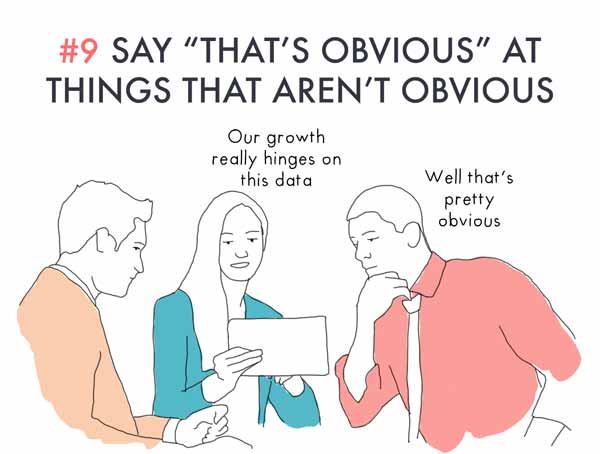
People who are never surprised by anything always seem wise beyond their years, don’t they? By saying things are “pretty obvious,” you make it seem like you saw it coming all along, and have more experience than anyone else in the room.
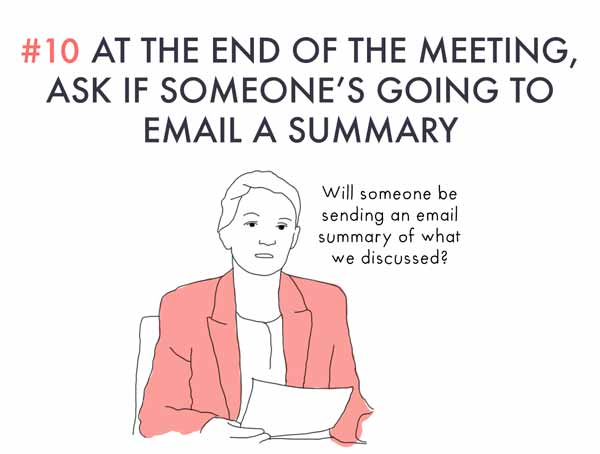
Show your coworkers you really care about what happened in the meeting by asking for an email summary, but also show them how valuable your time is by making it clear someone else needs to do this.
-
How to Say No Without Ever Saying No
Saying no is especially hard for people-pleasers. That’s why it’s good to have a game plan with many options of how you can say no by avoiding saying no. Here’s seven tips for how to say no at work without ever saying no.
1. Say nothing. Sometimes if you don’t respond to the request at all, it simply goes away. Sure, the requestor could think you’re being rude but don’t worry about that part for now. For now, just stay silent and bask in the glory of avoiding saying no.

2. Ask for more information. Once you receive the second request, ask for more information. Ask for some information that would be impossible to get. This way you really may never hear from them again.

3. Say “Maybe.” After they get back to you with that information you were sure they wouldn’t have, say you’ll have to think about it. Give them a definite maybe. Then just never respond to them. Once again, you can rest assured knowing you’ve avoided a confrontation.

4. Say “Not right now.” After they don’t forget about it, say that now isn’t a good time. Say you’ve got a full plate of responsibilities right now. When they ask you for a better time, give them a very specific time in the very distant future and they likely will have totally forgotten about it by then, or did it themselves or asked someone else. Either way, you got away.

5. Say you’ll get back to them. Saying you’ll get back to them is a great way to say no. You can say how much you really want to do this thing, but then also appear as if not doing it may just be out of your hands due to how busy you are.

6. Offer something else instead. Maybe there’s something else you could do instead of that thing you’re being asked. This will make you look generous without having to say no to that thing they were asking you to do. But keep in mind, you may end up having to do both things now.

7. Say yes. Saying Yes is the easiest way to say No. It means you can make the other person happy and you can make myself momentarily happy because you feel like such a great employee. Just beware that the dread of actually having to do this thing will set in quickly, and then you’ll probably end up not doing it anyway, making both you and the person who asked you to do the thing both very, very miserable.

If these steps don’t work, try being honest, saying no firmly but kindly and not making any excuses you’ll have to answer for later. But this is only as a last and final resort.
-
Time Parting in Analysis Workspace
So some of you might have found it annoying that you can’t look at say Monday for the last four weeks rolled up, or hour of the day. Instead you have to run every weekday or every hour and then sum them after. Well now you don’t have to, analysis workspace has now introduced time parting which means you have dimensions like “Day of Week” or “Hour of Day” that you can drop in to a report.
This means you can do things like drop last four weeks across the top, day of week down the side and instantly have a table of trended data by weekday.
-
Excel Formulas & Data Presentation
Excel Data Presentation Guide [Download]
Copy & Paste Values Copying the the contents of a cell and pasting just the value and not the underlying formula that is displayed in the formula bar. Remove Duplicates Delete duplicate rows from a sheet. Number Formats Changes the appearance of numbers, including dates and times, without changing the actual number. Data Validation Pick from a list of rules to limit the type of data that can be entered in a cell. Sort Values in a list with their corresponding values in adjacent columns are ordered by criteria to make them more legible. Filter Create a subset of data that meet certain criteria from the current dataset. Freeze Panes Freeze a portion of the sheet to keep it visible while you scroll through the rest of the sheet. Conditional Formatting Easily spot trends and patterns in your data using bars, colours, and icons to visually highlight important values. Graphs Easily spot trends and patterns in your data using bars, colours, and icons to visually highlight important values. Excel Formula Reference Guide [Download]
Some of you might have seen this already but before Lee left us he gave us a great reference document of the top Excel formulas you might find helpful, it includes:
Anchoring Cells – Defines whether the cell or range of cells referenced changes relative to the position of the copied cell or range of cells or remains constant regardless. SUM – Adds all the numbers in a range of cells. SUMIF and SUMIFS – Adds the cells specified by a given condition or criteria.
– Adds the cells specified by a given set of conditions or criteria.ROUND, ROUNDUP and ROUNDDOWN – Rounds a number to a specified number of digits.
– Rounds a number up, away from zero.
– Rounds a number down, towards zero.Wildcards – Used when the full text reference is unknown or if it needs to be non-specific. COUNT and COUNTA – Counts the number of cells in a range that contain numbers.
– Counts the number of cells in a range that are not empty.COUNTIF and COUNTIFS – Counts the number of cells within a range that meet the given condition.
– Counts the number of cells specified by a given set of conditions or criteria.VLOOKUP and HLOOKUP – Looks for a value in the leftmost column of a table, and then returns a value in the same row from a column you specify. By default the table must be sorted in an ascending order.
– Looks for a value in the top row of a table or array of values and returns the value in the same column from a row you specify.MATCH – Returns the relative position of an item in an array that matches a specified value in a specified order. INDEX and INDEX with MATCH – Returns a value or reference of the cell at the intersection of a particular row and column, in a given range.
– Returns a value or reference of the cell at the intersection of a particular row, based on the relative position of an item in an array that matches a specified value in a specified order, and column, based on the relative position of an item in an array that matches a specified value in a specified order, in a given range.OFFSET and OFFSET with MATCH – Returns a reference to a range that is a given number of rows and columns from a given reference.
– Returns a reference to a range that is a given number of rows, based on the relative position of an item in an array that matches a specified value in a specified order, and columns, based on the relative position of an item in an array that matches a specified value in a specified order, from a given reference.RANK – Returns the rank of a number in a list of numbers: its size relative to other values in the list. LARGE and SMALL – Returns the k-th largest value in a data set. For example, the first largest number.
– Returns the k-th smallest value in a data set. For example, the first smallest number.AND, OR and NOT – Checks whether all arguments are TRUE, and returns TRUE if all arguments are TRUE.
– Checks whether any of the arguments are TRUE, and returns TRUE or FALSE. Returns FALSE only if all arguments are FALSE.
– Changes FALSE to TRUE, or TRUE to FALSE.IF and IS Functions – Checks whether a condition is met, and returns one value if TRUE, and another value if FALSE.
– Checks the specified value in relation to the function and returns TRUE or FALSE depending upon the outcome.Errors and IFERROR – Errors are returned when Excel cannot properly evaluate a worksheet formula or function.
– Returns value_if_error if expression is an error and the value of the expression itself otherwise. -
Data Viz Study
So if the words data visualisation don’t make your eyes roll back in your head Tableau have written an article based on tracking eye movements when looking at dashboards to give some ideas on how to improve your visuals here. My favourite take-aways though are:
- Big numbers draw attention, rather than just putting all of your numbers in a table with a total row why not put them up the top and change the font size.
- It might look tidy to use the same graph types but people get repetition fatigue and you’re better off mixing up your visuals.
- Use contrast, having a colour pallet that’s easy on the eye might be important but if all of your colours are similar it can be easy to glaze over and you’re better off using contrasting or bright colours to draw attention.
-
Error Reporting in SessionCam
SessionCam ran a seminar recently on how to use their new Error Reporting feature, which you can now watch above. I’ve had a play around with it but it’s definitely in its early stages and could do with some refining. If anyone has a go and has any questions/feedback I’d love to hear it and would be happy to pass it on to SessionCam for future developments.