Category: Development

  • Agile for families?

    So hopefully many of you are familiar with the concept of Agile, if not it’s just a method of project management, used especially for software development and how our digital product teams currently work.

    Bruce Feiler has a radical idea: To deal with the stress of modern family life, go agile. Feiler introduces family practices which encourage flexibility, bottom-up idea flow, constant feedback and accountability. One surprising feature: Kids pick their own punishments.

    Feiler is not the only parent to introduce a scrum process in his family to help kids become independent and empowered and parents less stressed.

    There is a growing movement of parents implementing agile strategies at home. From weekly standups to logistical coordination, there are lots of ways to adapt agile ideas into your home. Aside from the tangible solutions to scheduling, agile practices also help to instill a core set of values in children at surprisingly early ages. We asked a few agile families to share their experiences:

    Working Together

    Like agile practices in the workplace, agile families participate in daily stand-ups and weekly meetings. A stand up meeting with kids generally consists of a morning routine in which they are referencing a board, whether it is digital or post-its on the wall, and they are checking off their tasks. This can include things like packing a lunch, making sure they have the proper equipment for practice later, or routine chores. This regular planning process is the cornerstone to parents and kids creating a successful system that is adaptable to their weekly goals and tasks.

    For UK based web designer and blogger John Oxton-King, his agile household stresses teamwork. For example, some days the kids have a card in their “To Do” list titled “Laundry.” The kids know they are responsible for bringing their basket of dirty laundry down to the laundry room, and the parents have agreed to take it from there. When the clothes are washed, the children are responsible for bringing the clothes back up to their rooms and putting them away. This simple routine underscores the concepts of teamwork and delegation, which are general life skills that can be applied to the world at large.

    “Our pitch to our children is: You are responsible for your own destiny. Our role is to support you,” John explains.

    A Valued Member Of The Team

    A core tenet of this philosophy is that the process is most effective when all participants are heard equally. Agile is the antithesis of Waterfall management, a different project management strategy that is directed by one leader issuing top down requests (and, sometimes, what feel like demands). This is also a common form of parenting in which the parents call all of the shots and don’t involve their children to help make decisions that affect family life.

    For Cat Moon, legal and educational consultant from Tennessee, she co-opts Sunday dinner into a weekly meeting of the family. It is there that they work together to figure out what’s coming up and who’s doing what in the week ahead. And she makes sure everyone’s voice is heard.

    “If we’re trying to figure out where we want to go for a 4 day weekend, I’ll let my 14 year old run with it and Google her heart out and figure out a place we’ll want to stay,” she explains.

    When agile concepts are adapted for a family setting, one of the results is instilling in kids the idea that everyone in the family’s input is valid and considered equally. If kids pick their tasks and goals for the week, they are empowered to make decisions and  have ownership to ensure they are completed.

    Parents are not issuing orders and expecting them to blindly be obeyed: children of agile families know that weekly meetings are a safe space where they can make suggestions as well as air grievances. Just during a work team’s agile retrospective, kids should understand that this feedback will be considered thoughtfully.

    Instilling Autonomy

    By making it clear to kids that they are active participants in their agile family, they learn the importance of personal responsibility. Being proactive and accountable are important ways that children learn to manage their own lives as they grow up. Your child may even become a top project management expert or scrum master when he or she is an adult.

    “The greater goal as parents is that we want them to detach at some point and go out and find the world, feel empowered and independent, and feel like there are ways of organizing and controlling your life, without having a rigid structure,” John asserts.

    This also means kids are not expectant upon their parents to take care of everything for them, especially in the long term. “There are a lot of parents who, for all the right reasons, want to do everything they can for their kids. In the midst of that, there is the risk of kids developing a sense of entitlement. It’s not intentional, but it happens,” Cat says. “And I’m very mindful of that with my kids. I want them to understand that everything that happens to them stems from their personal responsibility.”

    “The greater goal as parents is that we want them to detach at some point and go out and find the world, feel empowered and independent, and feel like there are ways of organizing and controlling your life, without having a rigid structure.”

    – John Oxton-King

    Hint: Agile Parenting Can Be Fun Too

    For the Oxton-King family, one of the interesting ironies of maintaining these routines is that it actually creates more time for their children to enjoy life. “Our saying is rhythm, not routine,” explains Rachel Oxton-King, “We don’t want every day to be a drudge of having to do this, then this, then this. It’s more like finding a nice way to maneuver.”

    By managing homework tasks with a Trello board, John and Rachel’s children are able to anticipate what tasks need to get done, schedule properly, and then have more time for other aspects of life.

    For their son Josh, an avid BMX rider, adding a card at the bottom of his “To-Do” list that is titled “Go out BMXing,” motivates him to get started on his homework tasks so that they can be moved to “Done,” and he can get going on his hobbies.

    Overall, it’s a process. Like all agile development, it takes time to figure out how these processes will work in each family. That’s why staying adaptable and keeping the lines of communication open among family members is crucial to the success of agile parenting.

    Cat suggests deciding ahead of time what you wish to accomplish: “My primary goal was to empower my kids to figure out how to manage things on their own. Secondly, I wanted them to figure out prioritization. I wish I had figured that out sooner in my own life and education.”

  • A pro wrestler’s guide to confidence

    You are more than you think you are, says former pro wrestler Mike Kinney — you just have to find what makes you unique and use it to your advantage. For years Kinney “turned up” the parts of himself that made him special as he invented and perfected his wrestling persona, Cowboy Gator Magraw. In a talk equal parts funny and smart, he brings his wisdom from the ring to everyday life, sharing how we can all live more confidently and reach our full potential.

  • The Gift and Power of Emotional Courage

    Psychologist Susan David shares how the way we deal with our emotions shapes everything that matters: our actions, careers, relationships, health and happiness. In this talk, she challenges a culture that prizes positivity over emotional truth and discusses the powerful strategies of emotional agility. A talk to share.

    What I found most interesting about this talk though is that I’ve often found there’s a perception that “being positive” means just pretending to be happy or not letting things bother you even when they should. In our organisation we’re especially persistent that people need to “be positive” and “be resilient” but what that means to me is accepting the way you feel and working out how to overcome it, not pretending it’s not how you’re feeling.

    If you’re a line manager it’s really valuable to remember if somebody does tell you how they’re feeling it’s not necessarily a problem to solve or something they need to “just get over”.

  • The Academy Downloadable Books!

    So interestingly I only found this the other day but did you know The Academy has a whole online library of downloadable books? You can find the library here but there are some great books for example:

  • Excel function to list files in a folder without VBA

    Listing the files in a folder is one of the activities which cannot be achieved using normal Excel formulas. I could tell you to turn to VBA macros or PowerQuery, but then any non-VBA and non-PowerQuery users would close this post instantly. But wait! Back away from the close button, there is another option.

    For listing files in a folder we can also use a little-known feature from Excel version 4, which still works today, the FILES function.

    The FILES function

    If you search through the list of Excel functions, FILES is not listed. The FILES function is based on an old Excel feature, which has to be applied in a special way. The instructions below will show you step-by-step how to use it.

    Create a named range for the FILES function

    The first step is to create a named range, which contains the FILES function. Within the Excel Ribbon click Formulas -> Define Name

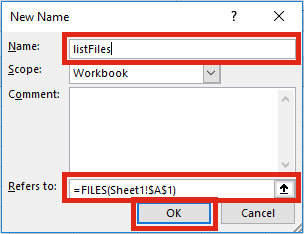
    Within the New Name window set the following criteria:

    • Name: listFiles
      Can be any name you wish, but for our example we will be using listFiles.
    • Refers to: =FILES(Sheet1!$A$1)
      Sheet1!$A$1 is the sheet and cell reference containing the name of the folder from which the files are to be listed.

    Click OK to close the New Name window.

    Apply the function to list files

    The second step is to set-up the worksheet to use the named range.

    In Cell A1 (or whichever cell reference used in the Refers to box) enter the folder path from which to list the files, followed by an Asterisk ( * ). The Asterisk is the wildcard character to find any text, so it will list all the files in the folder.

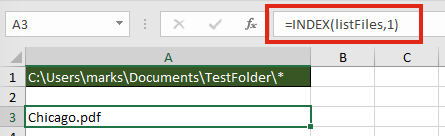
    Select the cell in which to start the list of files (Cell A3 in the screenshot below), enter the following formula.

    =INDEX(listFiles,1)

    The result of the function will be the name of the first file in the folder.

    To retrieve the second file from the folder enter the following formula

    =INDEX(listFiles,2)

    It would be painful to change the file reference number within each formula individually, especially if there are hundreds of files. The good news is, we can use another formula to calculate the reference number automatically.

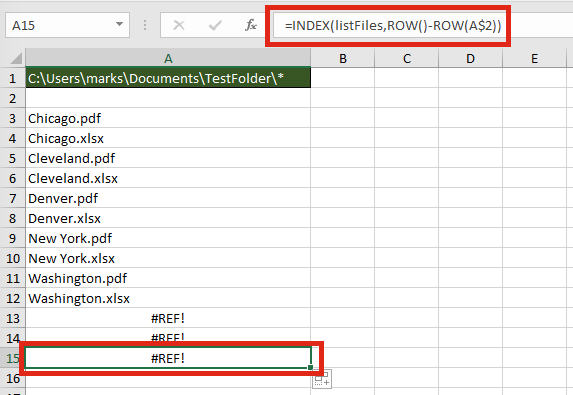
    =INDEX(listFiles,ROW()-ROW(A$2))

    The ROW() function is used to retrieve the row number of a cell reference. When used without a cell reference, it returns the row number of the cell in which the function is used. When used with a cell reference it returns the row number of that cell. Using the ROWS function, it is possible to create a sequential list of numbers starting at 1, and increasing by 1 for each cell the formula is copied into.

    If the formula is copied down further than the number of files in the folder, it will return a #REF! error.

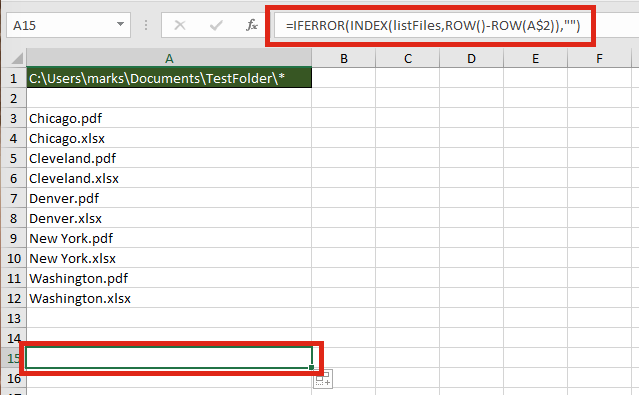
    Finally, wrap the formula within an IFERROR function to return a blank cell, rather than an error.

    =IFERROR(INDEX(listFiles,ROW()-ROW(A$2)),"")

    Listing specific types of files

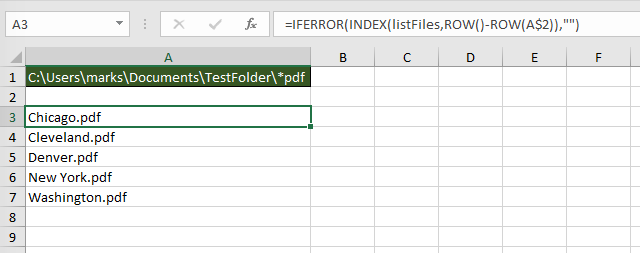
    The FILES function does not just list Excel files; it lists all file types; pdf, csv, mp3, zip, any file type you can think of. By extending the use of wildcards within the file path it is possible to restrict the list to specific file types, or to specific file names.

    The screenshot below shows how to return only files with “pdf” as the last three characters of the file name.

    The wildcards which can be applied are:

    • Question mark ( ? ) – Can take the place of any single character.
    • Asterisk ( * ) – Represents any number of characters
    • Tilde ( ~ ) – Used as an escape character to search for an asterisk or question mark within the file name, rather than as a wildcard.

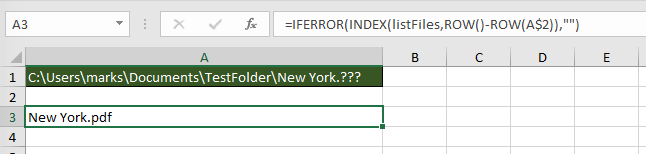
    The screenshot below shows how to return only files with the name of “New York.“, followed by exactly three characters.

    Advanced uses for the FILES named range

    Below are some ideas of how else you could use the FILES function.

    Count the number of files

    The named range created works like any other named range. However, rather than containing cells, it contains values. Therefore, if you want to calculate the number of files within the folder, or which meet the wildcard pattern use the following formula:

    =COUNTA(listFiles)

    Create hyperlinks to the files

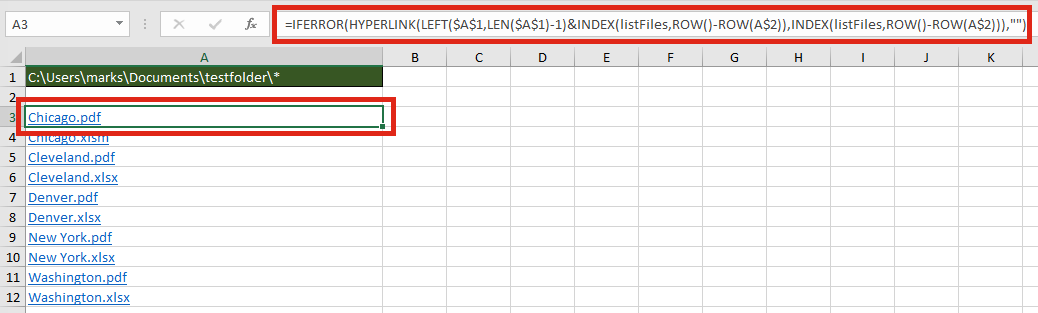
    Wouldn’t it be great to click on the file name to open it automatically? Well . . . just add in the HYPERLINK function and you can.

    The formula in Cell A3 is:

    =IFERROR(HYPERLINK(LEFT($A$1,LEN($A$1)-1)&INDEX(listFiles,ROW()-ROW(A$2)),INDEX(listFiles,ROW()-ROW(A$2))),"")

    Check if a specific file exists within a folder

    It isn’t necessary to list all the files to find out if a file exists within the folder. The MATCH function will return the position of the file within the folder.

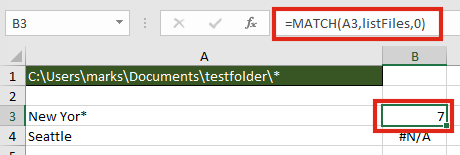
    The formula in cell B3 is:

    =MATCH(A3,listFiles,0)

    In our example, a file which contains the text “New Yor*” exists, as the 7th file, therefore a 7 is returned. Cell B4 displays the #N/A error because “Seattle” does not exist in the folder.

    Find the name of the next or previous file

    The files returned are in alphabetical order, therefore it is possible to find the next or previous file using the INDEX / MATCH combination.

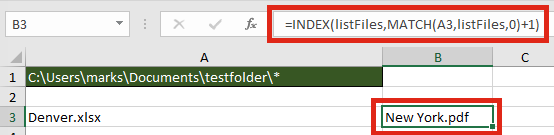
    The next file after “Denver.xlsx” is “New York.pdf“. The formula in Cell B3 is:

    =INDEX(listFiles,MATCH(A3,listFiles,0)+1)

    Retrieve values from each file with INDIRECT

    The INDIRECT function can construct a cell reference using text strings. Having retrieved the list of files in a folder, it would be possible to obtain values from those files.

    The formula in Cell B3 is:

    =INDIRECT("'"&LEFT($A$1,LEN($A$1)-1)&"["&A3&"]Sheet1'!$A$1")

    For INDIRECT to calculate correctly the file does need to be open, so this may be a significant flaw in this option.

    Usage notes

    When working with the FILES function there are a few things to be aware of:

    • The file path and file name is not case sensitive
    • Files are returned in alphabetical order
    • Folders and hidden files are not returned by the function
    • The workbook must be saved as a “.xlsm” file format
  • Tealium Migration

    As part of our plan to continue to drive value from our data we’re undertaking a project to migrate from our existing tag management solution “Adobe DTM” to a new solution called Tealium. There are some immediate operational benefits to doing this such as:

    • Increase site performance and speed through better code management (primary benefit).
    • Opportunity to ensure the data we collect is aligned with our flywheel strategy.
    • Generate value-add insight to help the business with critical commercial and customer related decisions.
    • Improve our reporting capability and help the Dynamic Trading Cells with their analysis.
    • Provide a robust governance structure around code changes and developments on the website.
    • Improve the way data is collected and moves between a website or mobile app session and vendors.

    The official due date is the 1st April 2018 and at a top level there are 4 phases:

    1. Requirements gathering – to ensure the solution delivered meets the needs of the business.
    2. Solution design – translating the business requirements in to technical documentation.
    3. Implementation – the longest part, working along side the product development teams and our development agency DMPG.
    4. Business readiness – testing to make sure what we’ve developed both matches our documentation and can answer as many of the business requirements as possible.

    The migration is going to result in a number of functional changes to the way we structure and collect data including moving to a “web” report suite rather than how we currently have a “desktop website” and “mobile website” report suite, apps are currently out of scope for this project.

  • A Little Charisma Goes a Long Way

    I recently read this article from the Harvard Business Review (shared with me by Miles) and thought it made an interesting point.

    Charismatic leaders can inspire others to perform better, and it would seem to follow that the more charisma a leader has, the more effective he or she will be. But new research reveals limits to the more-is-better theory. Researchers asked 306 leaders to rank themselves on charisma, using a common personality test, and to rate their effectiveness as leaders on a 10-point scale; they also asked coworkers to rate the leaders’ effectiveness (on average, 14 people assessed each leader).

    The more charismatic the leader, the higher the self-reported effectiveness—but when charisma reached the 60th percentile (slightly more than average), coworkers’ ratings of effectiveness began to decline. Although it’s hard to define “too much” charisma, several traits may be red flags, including overconfidence, narcissism, and manipulative behaviour. The findings suggest that leaders should be aware that being highly charismatic may have drawbacks and should consider things such as 360-degree evaluations, coaching, and development programs to enhance self-awareness and self-regulation.

  • Organisation Using Trello

    I thought I’d write an article about this as I’ve had a few people asking questions, hopefully some of you have heard of Trello but if now it’s literally a tool to help you organise and work collaboratively. The free version includes nearly everything, the paid part only adds on a few features that aren’t that valuable. You can get started / sign up here.

    It’s worth bearing in mind this doesn’t work for everyone, some people are naturally organised, some people genuinely work better in chaos but for those of you in-between who could do with a helping hand this might be for you.

    They have a help page that can take you through some of the basics like basics, creating a board and features you can take a look at here, they even have videos if you’re not sure. What I did want to talk about however is how YOU might find it useful, how to setup a personal board to manage your work and some of the features that can help with stuff coming in.

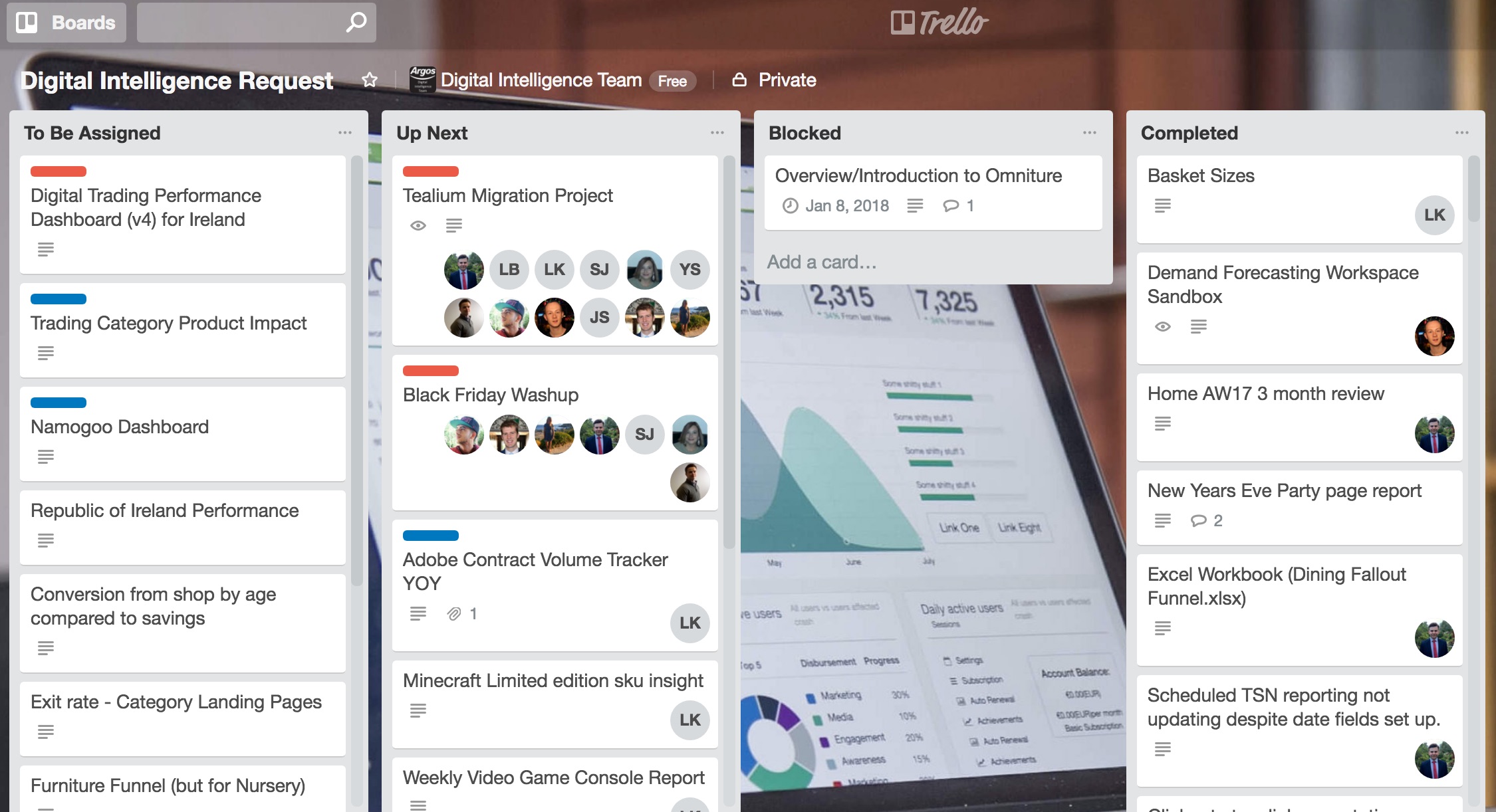
    Typically I’d setup a board like below and how our team works together on requests:

    • TBA (To Be Actioned) – Now the idea is all of the requests you get via email, Skype, text, WhatsApp, Slack, phone, carrier pigeon you dump straight in “TBA”. That’s where your ‘backlog’ is. This is a similar approach to how product development or agile works. I’ll show you another trick with this a bit further down.
    • Up Next / In Progress – Next you have your “Up Next / In Progress”, if you’ve got a lot of stuff you might want to split this out so you know what you’ve decided you’re going to work on next and what you’re currently working on. That being said I typically find it’s not necessary and I can keep the things I’m currently working on or just about to start in this list.
    • Blocked – now this is an important one, if you’re waiting for a response, can’t do something because it’s not possible at the moment, etc, put it in here. This lets you know how many items you’re working on or want to work on but can’t due to external factors. This keeps your “Up Next / In Progress” list clear of junk that you can’t do anything about. You’d typically check this on a regular basis to make sure there’s nothing that’s changed.
    • Completed – hopefully doesn’t require much in the way of explanation but this is where you’ve put stuff once it’s done. I’d try not to archive or delete stuff from here as it’s useful as a log that you can go back to.

    Typically this is how our team operate and you can see what it looks like for us below but this can be done for a team or for an individual depending on how you work best.

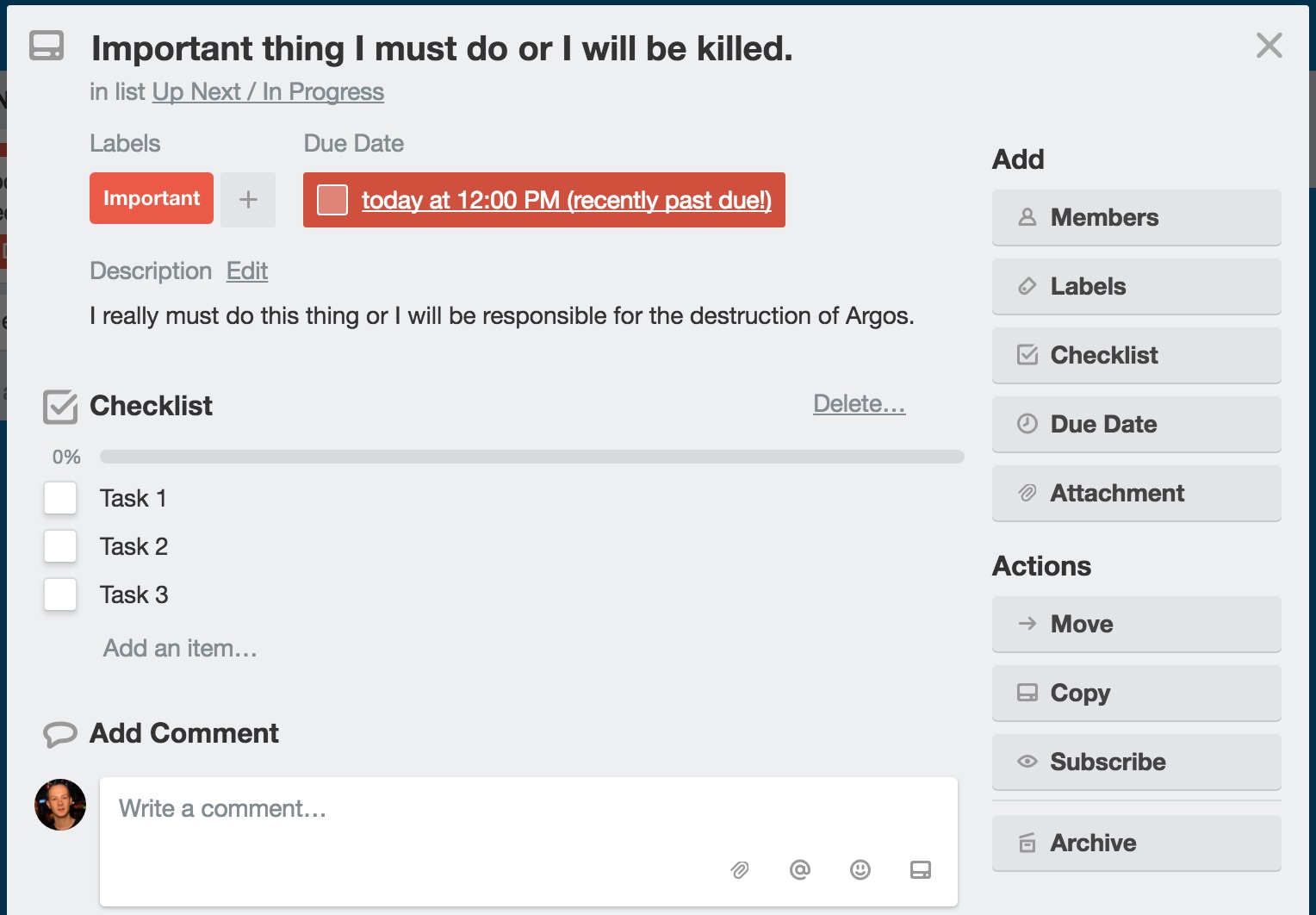
    Card Setup

    There is a whole host of options within the cards themselves, you can:

    • set your labels (which you can also do from the board).
    • add a due date which will highlight if your over due.
    • if you’ve got others in the team signed up you can add them to the card if they’re involved.
    • create a checklist or multiple checklists of individual tasks.
    • attach files from multiple places including One Drive so if you work from One Drive your file will always be up to date.
    • write a description including bullets, numbered lists, links, headings, etc (click to start writing and press the formatting button if you’re not sure).
    • add comments either for your own information or get other people to comment!
    • you can also move or copy to other boards, or archive (doesn’t delete just hides the card).
    • subscribe, if it’s somebody else’s board you can subscribe to get notified of any updates.
    • you can also see the history of the card, any changes, updates, comments.

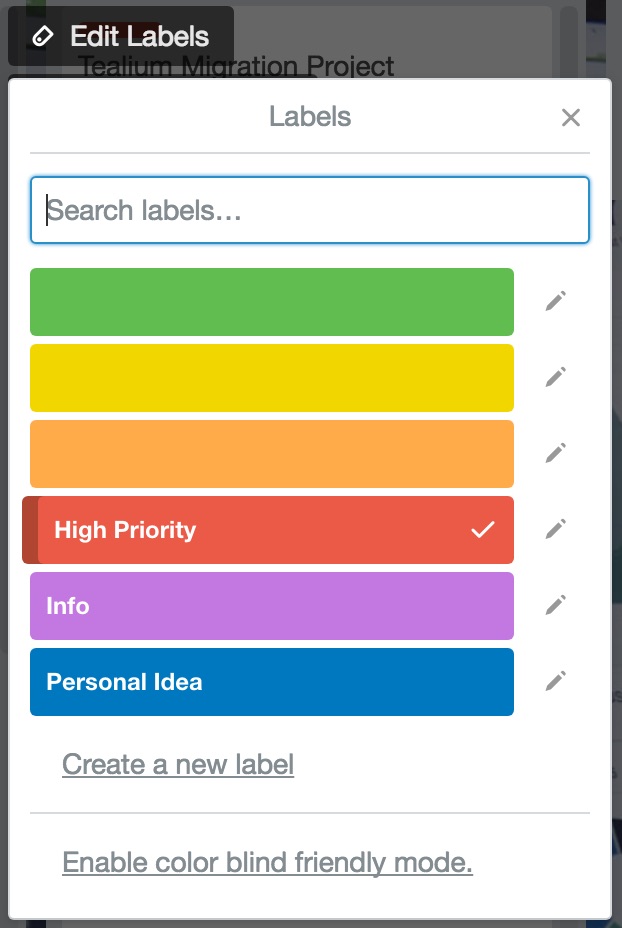
    Labels

    You can use labels to help colour code things and you can also name those labels and create new ones, you might for example want “High Priority” because lets face it even at the top of the list you sometimes need that extra RED to stand out. You might want a colour for your own ideas of things that you want to do or ones that are just for information but you want to have in Trello so they’re easy to find.

    Main Menu

    There are a few options of note in here, if you hit the “Show Menu” icon on the top right you’ll see these:

    • Change Background – okay maybe not that important but if you hit “Change Background” you can select from a ton of photos to make your board a little bit more personalised.
    • Filter Cards – if you’re working with other people on a board or have a lot on there you might find it a bit overwhelming with all the cards, if you hit “Show Menu” and what’s even better is you can bookmark these if you want to have a team board but filtered to “me only”.
    • Email-to-board – this is a really useful option, if you don’t want to have to manually copy and paste requests or write them up you can just email them directly to the board! You’ll find this option under “More” but it will give you a funky email address you can send stuff too, save this in your contacts as something easy to remember and whenever you want to add an item just forward it on.
    • Activity – here’s where you can see overall activity for the board if you’re wanting to see what’s changed recently and don’t want to go in to each card.

    Tips and Tricks

    • If you want to make it possible for people to fill in a form to request some work you can either use something like TypeForm or Survey Monkey to create a form / survey and direct the responses to the Trello “Email-to-board” email address. That way you can get people to push stuff directly to your board without having to do anything!
    • Make sure you save your work to One Drive rather than your local computer, aside from the fact it means you can access it from home and share it, you can also link it to a card and the file the card refers too will always be up to date, no more uploading version 1.1, 1.1.1, 1.1.1.1, you get the idea…
  • The Worst Office Jargon

    Going forward

    It means in the future and is probably the most overused piece of office jargon. The phrase was most probably coined to encourage office staff to stay optimistic, rather than dwelling on what (usually negative) development is happening in the here and now. Last year Conservative minister Alan Duncan took a stand for common sense when he banned his staff from using the term, calling it “loose and meaningless”.

    To ‘Action’ something

    In an office environment you may often be asked to ‘action’ something rather than simply ‘do’ it. Verging, the creation of a verb from a noun or adjective, has become gradually more common. In this case action can almost always be replaced with a proper, more specific verb.

    Touch base

    An Americanism, the term ‘touch base’ comes from baseball where runners need to touch the base for a run to be legal. In the boardroom, however, it means to make or renew contact with someone. This contact can be in the form of a call, email or face-to face meeting. Often used as a request; “let’s touch base” is about as meaningful as “let’s do lunch”. Office workers may also be asked to ‘reach out’, which means the same thing.

    Circle back

    Circle back is another piece of office jargon which makes absolutely no sense. It really means to catch up later; a more grandiose version of ‘follow up’ or ‘check back’. An example of its use would be “I’m just heading to a very important meeting but we will circle-back later.”

    Blue–sky thinking

    Equally meaningless are the phrases ‘blue sky thinking’ and ‘thinking outside the box’. Both mean the idea of thinking creatively and coming up with original ideas. Put into ordinary language they translate to ‘doing your job’.

    Brainstorm

    Slightly more specific than blue sky thinking, brainstorming is a technique by which a group discussion is held to produce ideas. The brainstorming movement was nearly thwarted several years ago when a council banned the term, fearing it might offend mentally ill people and those with epilepsy. An alternative phrase, ‘thought showers’, was encouraged.

    To take something offline

    This term is particularly maddening because it has nothing to do with the internet. It is actually a convoluted way of putting off addressing something. For example if an office worker says about a certain topic, “let’s take this offline”, he or she is really saying let’s talk about this later or more probably never again.

    Low hanging fruit

    This non specific phrase refers to an easily achievable goal or target. It comes, quite logically, from the idea that you wouldn’t need to scale a tree to pick an apple when there is one hanging close to the ground. The problem is that it means nothing as no one knows what tasks are actually being referred to. It is also misleading; taking the easiest option is not always the best solution.

    Get the ball rolling

    This sporting idiom originated from games which began when a ball started to roll. Somehow the term has crept into boardrooms and office blocks and simply means ‘begin’.

    Drill down

    Not, as one might think, anything to do with heavy machinery. It means to look at something in detail. It can be used either as a noun or as a verb, for example “he found the required information through a drill-down”.